![Logo Jobtoolz - White.svg]](https://help.jobtoolz.com/hubfs/Logo%20Jobtoolz%20-%20White.svg)
Edit a Filter Template ✏️
Would you like to modify an existing filter template? Follow the steps below.
Step 1:Go to Filter Templates
Open your settings and click on the Filter Templates tab.
Step 2:Select the Filter Template
Find the filter template you want to edit and click the pencil icon ✏️ next to the template.
Step 3:Modify the Filter
A window will open where you can edit the filter.
Make the desired changes and then click Apply Filter to save your updates. ✅
👉 Your filter template has now been successfully updated and saved.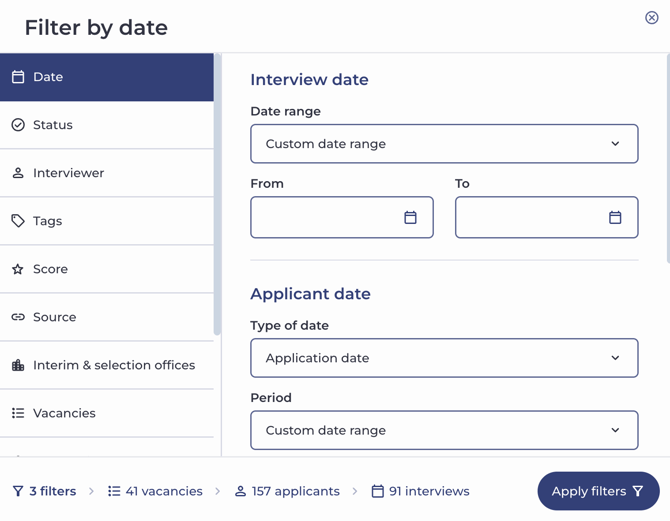
Duplicate a Filter Template 📄
Would you like to quickly create a copy of an existing filter template? You can easily do so using the duplicate function.
Step 1:
Open Filter Templates
Go to your settings and navigate to the Filter Templates tab.
Step 2:
Choose the Template You Want to Duplicate
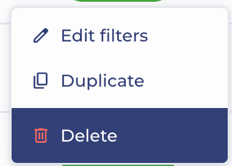
Find the template you want to duplicate and click the three dots (⋯) next to the template.

Select the Duplicate option.
Step 3:
Edit the New Copy
A copy of the template will be created automatically.
- Optionally, give the new template a different name.
- Adjust the settings as needed.
👉 This allows you to quickly create another version of an existing filter template without having to configure everything from scratch. 👍