![Logo Jobtoolz - White.svg]](https://help.jobtoolz.com/hubfs/Logo%20Jobtoolz%20-%20White.svg)
Add a new location
-
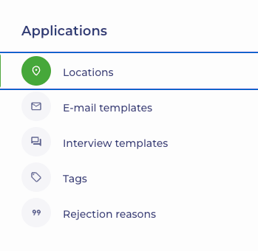
Go to Applications in the settings and then click Locations.
-
Click Add new location in the top right.

-
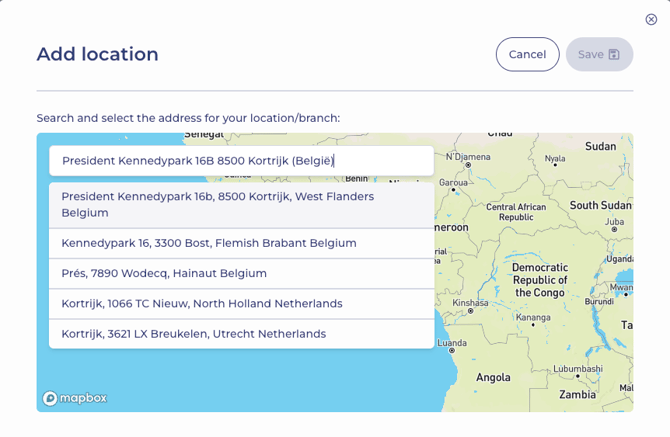
A new screen with a map will open. Enter the address in the search bar at the top of the map. As you type, you’ll see several suggestions.
-
Select the correct address. A pin will automatically appear on the map.
-
Add an alias: Under the map, you can add an alias. This is the name you want to give the location. The alias will also be displayed on your careers site, for example:
- Headquartes
- Kortrijk Site
- Ghent Office
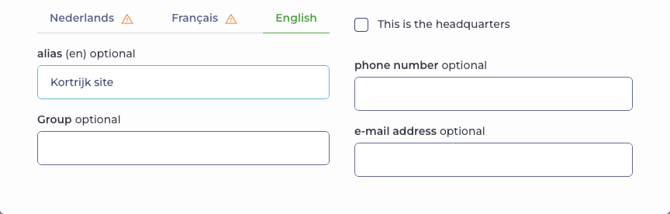
- Once you’ve entered all the details, click Save in the top left.
Multiple locations
You can add as many locations as you need. You can also open and edit existing locations at any time.