![Logo Jobtoolz - White.svg]](https://help.jobtoolz.com/hubfs/Logo%20Jobtoolz%20-%20White.svg)
When should you use this setting?
Use this automatic setting when:
- The entire company is closed during a period of collective leave.
- No recruiters or hiring managers are available to follow up on applications during that period.
- You want all candidates to automatically receive the same message after applying.
For a customised confirmation email for a specific vacancy, please refer to the relevant help article.
How do I modify my confirmation email for all vacancies?
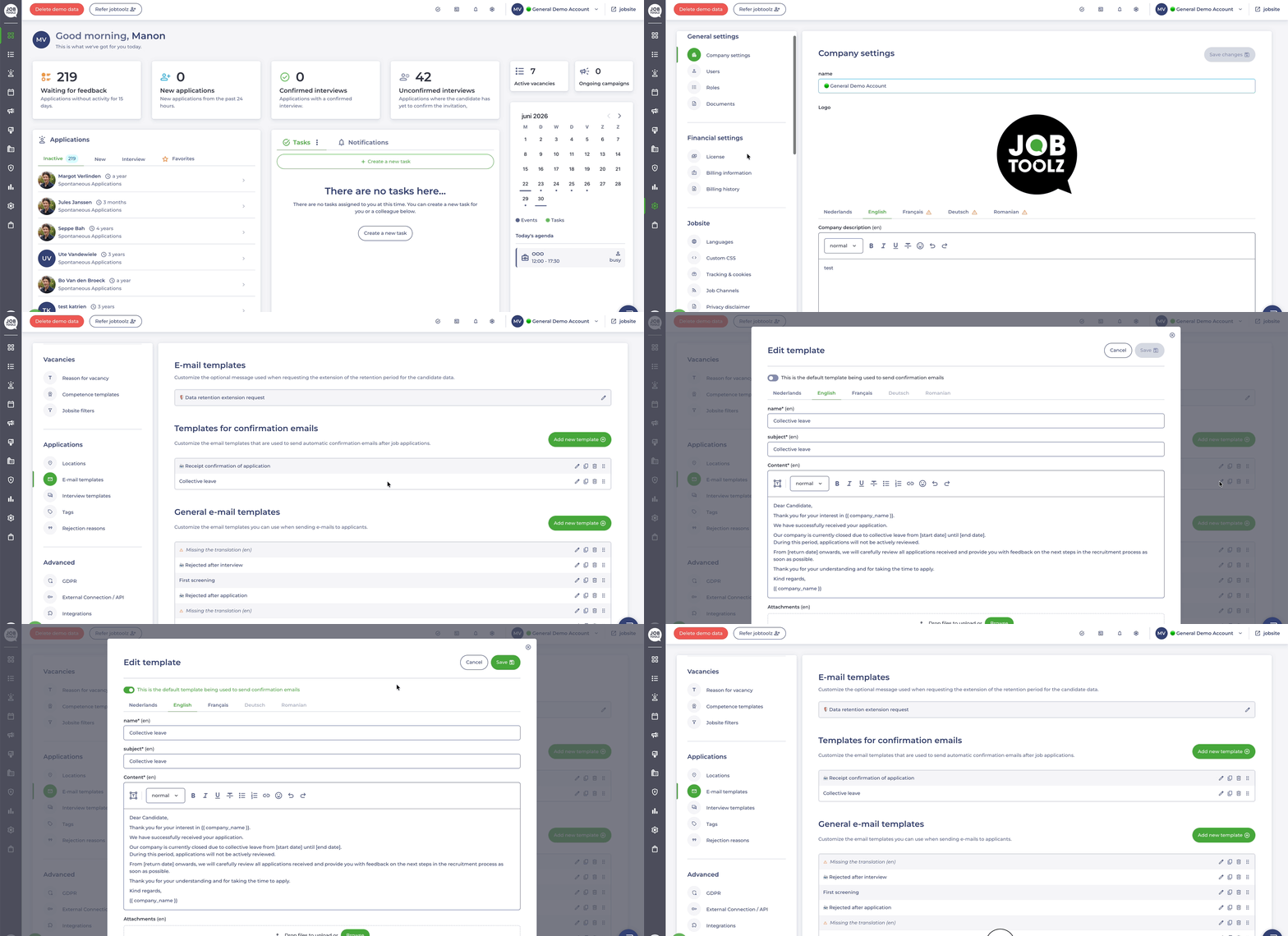
- Go to the Settings module.
- Under Applications, open the Email Templates section.
- Find the default confirmation email template or create a new one.
- Click the pencil icon to edit the template.
- Enable the option "This is the default template".
- Click Save.
💡 Set a reminder in your calendar for your first working day after your return. This will help you deactivate the automatic leave message in time and switch back to your standard email template.
All set!
That's it, everything is ready for a worry-free holiday. 🌴
Candidates now know when they can expect a response, while you can take some well-deserved time to recharge your batteries.
Enjoy your time off, and we look forward to welcoming you back refreshed and ready for a new round of recruitment! 💪